Picture Vocabulary Match
You upload the images and write the word for each; the student drags the correct word to the correct image. No translation, no AI.
Updated on
What is it for
Vocabulary without going through the native language: the student sees the thing and chooses the word. Works great with children, A1 classes, and closed semantic fields — food, clothes, parts of the house, professions, animals.
It's the only tool where the visual material is 100% yours: you upload the photos.
How to use
- Add the tool to your exercise.
- Click Upload on the first card. In Choose image source, use Upload from device or pick one from Recent Images, if you've used it before.
- Crop the image: drag to reposition, resize using the handles, and click Done.
- Write the word in the field next to the image ("Type a word…").
- Use Add to add more pairs. You need at least two.
- Click Abracadabra ✨.
The student gets the images in a grid and the shuffled word bank above.
What it looks like for the student
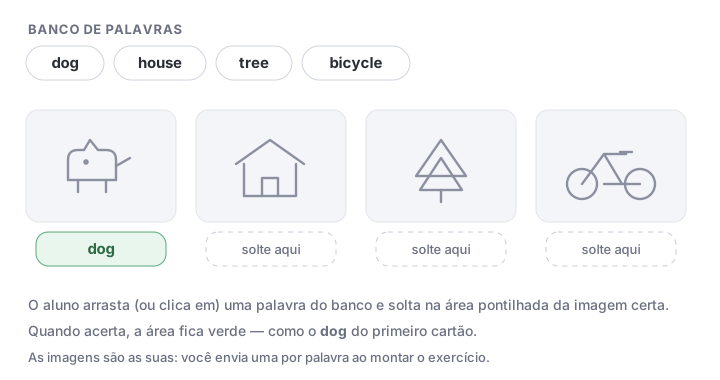
They click (or drag) a word from the bank and drop it in the area marked "Drop a word here", below the image. When they submit, each correct match turns green.
Tips
Tip: images with no text. If a product photo has the word written on the package, the exercise stops testing vocabulary.
Tip: use photos you took yourself or free image banks. You're responsible for the rights to what you upload.
Tip: 4 to 6 pairs per block. For a big unit, make two blocks in different semantic fields instead of one block with 12 images.
Note: the example above is a static illustration, not the real activity. Since this tool depends on images you upload, the interactive example only exists in the builder: set up a block with two images and use Preview.
Cost in credits
10 credits per generation. This tool doesn't call the AI: the cost is for the block generation. Uploading and cropping images don't cost credits.